
Sort and add subtotals
Sorting controls the order in which rows appear and are grouped in a report. It helps make data easier to read and interpret by organising values in a meaningful sequence.
Subtotals summarise measures for specific groups created by sorting.
This article explains the core elements of sorting behaviour and how to apply custom sorting and subtotals to table and matrix reports.
To learn how to add a grand total to a report, see Add a grand total.
⚠️ Scatter plot and bar/line chart report axes are always sorted in ascending order. Custom sorting is not supported for these report formats.
In this article
- Sorting concepts
- Table report sorting and subtotals
- Matrix report sorting and subtotals
- Need more support
Sorting concepts
Sorting controls both the order of rows in a report and how those rows are grouped. The way a report is sorted determines which values are grouped together and how many rows appear within each group.
Sorting behaviour is defined by three core elements:
- Sort hierarchy: The order in which fields are used to group row values in a report.
- Sort direction: Whether field values are organised in ascending (small to big or A to Z) or descending (big to small or Z to A) order.
- Sort limit: The number of rows returned for a grouping level after the sort hierarchy and sort direction are applied.
Together, these elements determine how data is grouped and displayed.
Field-level grouping
Field-level grouping is the result of applying a sort hierarchy. When a report is sorted by more than one field, rows are grouped first by the first field in the hierarchy, then grouped again by the next field, and so on. The number of rows within each group is determined by the values in the subsequent field.
If multiple rows share the same value in a grouping field and appear consecutively, that value is shown only once. The repeated values are hidden to improve readability. This behaviour is automatic and is directly caused by the sorting configuration.
To learn how hidden values work and how to override them, see Hidden values in table and matrix reports.
Example:
The rows in this report are sorted first by Order Shipping Country and then by Vendor, both in ascending order. All rows are grouped by their shipping country first. Because each shipping country includes multiple vendors, each country group contains multiple rows. Only the shipping country value in the first row of each group is shown.

Table report sorting and subtotals
Table reports support default sorting, custom sorting, and subtotals. These features work together to control how rows are grouped, ordered, and summarised.
Default sorting
By default, table reports are automatically sorted using the following configuration:
- Sort hierarchy: The order of fields from top to bottom in the selected dimensions and measures. This order maps from left to right across the table.
- Sort direction: Ascending
- Sort limit: Show all rows
Example:
In the report below, rows are grouped first by Product type, then by Vendor, and finally by Total orders. All fields are sorted in ascending order, and all vendor rows within each product type group are shown.

Custom sorting
Custom sorting lets you change how rows are grouped and ordered by adjusting the sorting configuration in the Sort by panel.
You can customise:
- Sort hierarchy: Group rows using fields in a different order than they appear in the report
- Sort direction: Switch a field from ascending to descending
- Sort limit: Limit how many rows are shown for a specific grouping level
Custom sorting affects how rows are grouped and which rows appear within each group.
Example:
In the report below, rows are grouped first by Product type and then by Total orders, even though Total orders appears later in the report. The Total orders field is sorted in descending order, so vendors within each product type group are arranged from the highest order count to the lowest. A sort limit of First is applied, so only the top vendor within each product type is shown.

Subtotals
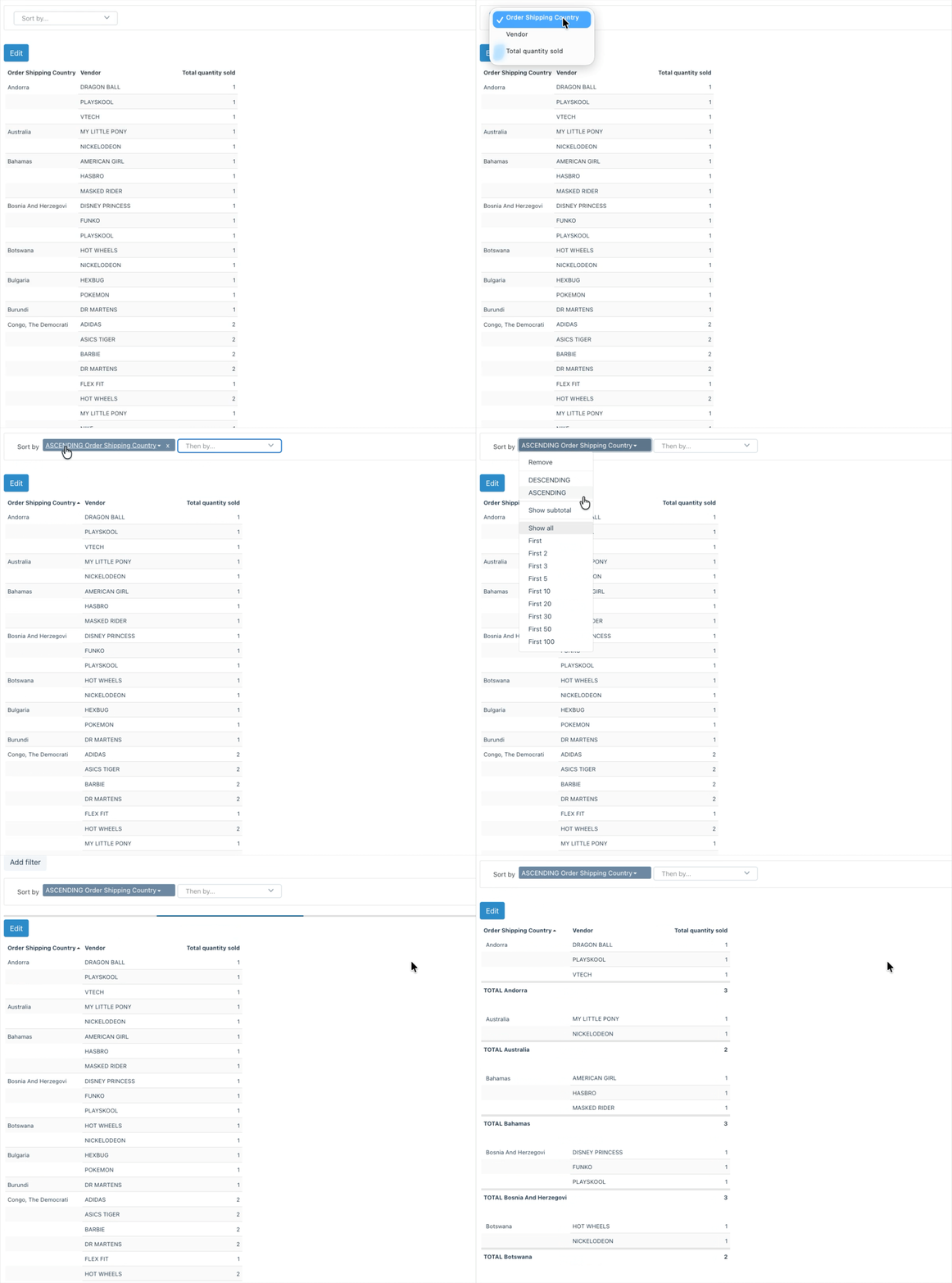
Subtotals summarise measures for groups created by the sort hierarchy. A subtotal row is added below each group for the field where Show subtotal is enabled, summarising measures for the rows within the group.
Example:
In the report below, the field Order Shipping Country is added to the Sort by panel, and Show subtotal is enabled. A subtotal row is added below each shipping country group, summarising Total orders for all vendors in the group.
Matrix report sorting and subtotals
Matrix reports support default sorting and subtotals, with some limitations compared to table reports. Sorting controls how rows and columns are grouped and ordered, while subtotals summarise values at specific grouping levels.
Default sorting
By default, matrix reports are automatically sorted using the following configuration:
- Sort hierarchy: The order of dimensions from top to bottom in the selected fields. This order maps from top to bottom for rows and from left to right for columns.
- Sort direction: Ascending
- Sort limit: Show all rows
⚠️ Matrix reports cannot be sorted by measures.
Example:
In the matrix report below, rows are grouped first by Product type and then by Vendor, both in ascending order. Columns are grouped first by YEAR Date and then by MONTH OF THE YEAR Date, also in ascending order. All vendor rows within each product type group are shown.

Custom sorting
⚠️ Matrix reports do not support custom sort hierarchy or sort limits.
You can customise sort direction by selecting a field in the Selected fields pane and adjusting the Sort direction option in the popup window.
Example:
In the matrix report below, the YEAR Date column is sorted in descending order by selecting Descending (Z→A) in the Sort direction options.

Subtotals
Subtotals in matrix reports summarise values for a specific grouping level. Unlike table reports, subtotals are configured by enabling totals on a subsequent field.
A subtotal is added for the grouping level of the field immediately above it in the Selected fields pane when Show totals is enabled.
Example:
In the matrix report below, a subtotal is added for the Product type grouping by enabling Show totals on the Vendor field.

Need more support?
If you get stuck or have additional questions, you can contact our team directly through the Help widget in the bottom-right corner — we typically respond within one business day.