
Add or remove fields from a report
Fields determine the data that appears in your report. You can add fields to include additional data, or remove fields to refine your report and focus on what you need.
You can add or remove fields at any time while creating or editing a report.
To learn more about choosing fields, see Dimensions and measures.
In this article
Add a field

You can add fields from the selected primary table or from related tables.
- Create a new report or open an existing report
- Select Edit
- Locate the field you want to add in the Available fields pane, or search for it
- Select the field to add it to your report. By default, it is added as the last column under dimensions or measures, depending on the field type. You can also drag the field to where you want it to appear in the Selected fields pane.
💡 To add another version of a non-parameterised field to your report, drag and drop it into the Selected fields pane. Selecting the field again removes the original field from the report.
Remove a field
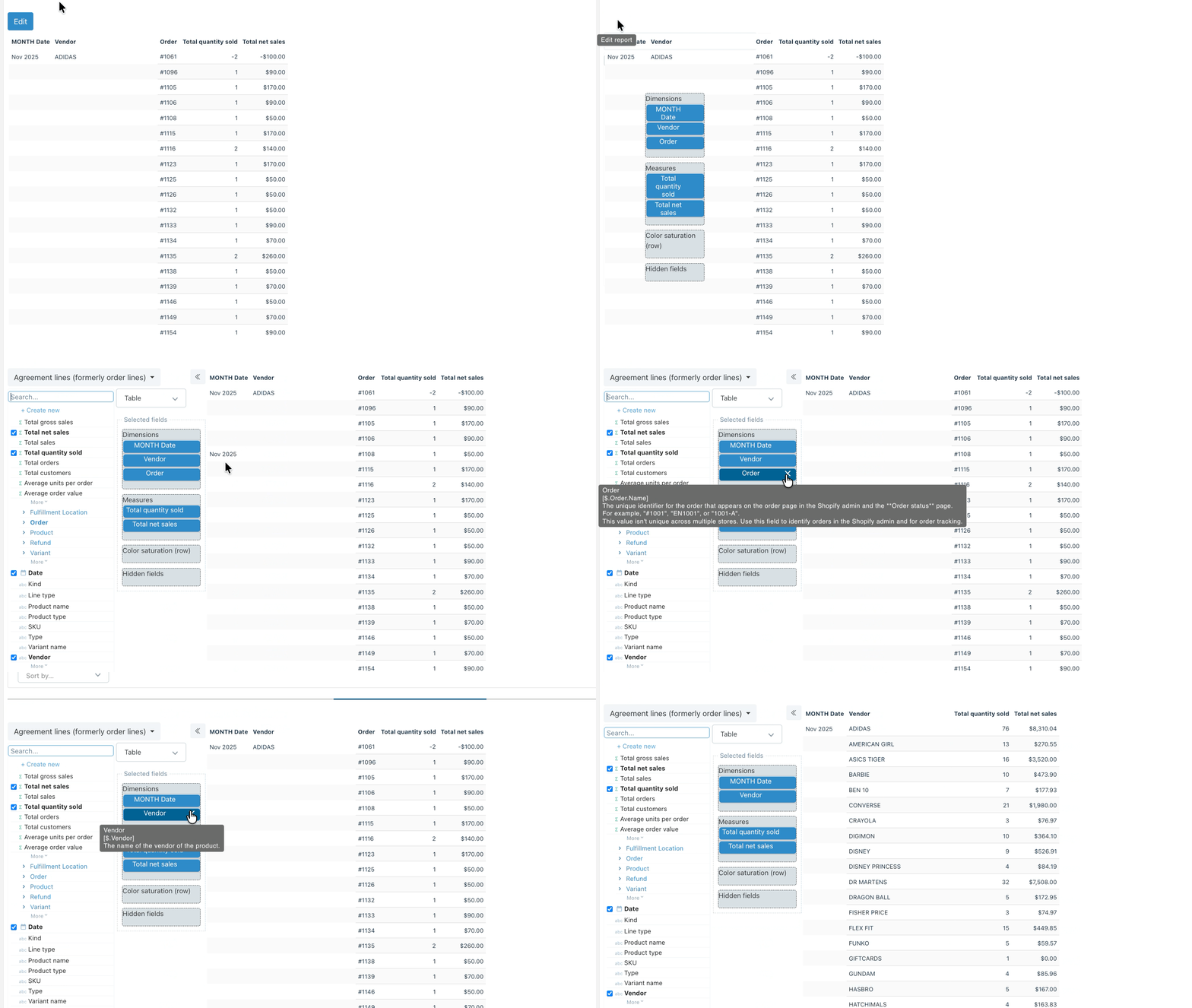
- Open an existing report
- Select Edit
- In the Selected fields pane, hover over the field you want to remove
- Select the X icon next to the field name
Need more support?
If you get stuck or have additional questions, you can contact our team directly through the Help widget in the bottom-right corner — we typically respond within one business day.